How to Add a Thermal Camera to Your iPhone with FLIR

No iPhone has a thermal sensor. Not the iPhone 17, not any model Apple has ever shipped. The cameras on every iPhone are silicon CMOS sensors tuned for visible light, and the Face ID array in front is a near-infrared depth camera operating around 940 nanometers — useful for unlocking your phone in the dark, useless for reading heat. Real thermal imaging needs a long-wave infrared detector in the 8-to-14 micron band, a microbolometer, which Apple has never had a reason to build into a phone.
Part of our Thermal Imaging for Homes guide — start there for the full picture →
So "FLIR camera for iPhone" means one thing: a clip-on attachment from Teledyne FLIR that plugs into the iPhone’s charging port and borrows the phone’s screen, processor, and storage to display the image. This page covers which model to buy for your specific iPhone, what each one actually resolves, and the connector trap that catches most first-time buyers.
Which FLIR ONE fits which iPhone
Here is the decision that matters before anything else: iPhone 15 and later use USB-C; iPhone 14 and earlier use Lightning. The FLIR ONE talks to the phone over Apple’s MFi data protocol, and a Lightning-to-USB-C adapter will not reliably carry that high-bandwidth video signal. A Lightning FLIR ONE on an iPhone 16 simply will not work. Match the connector to the phone, or go wireless.
| Model | Thermal resolution | Connection | Works with | Street price |
|---|---|---|---|---|
| FLIR ONE Gen 3 | 80×60 | Lightning | iPhone 14 and earlier | ~$250 |
| FLIR ONE Pro | 160×120 | Lightning or USB-C SKU | Match SKU to phone | $400–$550 |
| FLIR ONE Edge Pro | 160×120 | Wi-Fi (wireless) | Any iPhone, iPad, Android | ~$700 |
The 80×60 sensor on the Gen 3 produces 4,800 thermal pixels — enough to spot an obvious missing-insulation cold patch, not enough to resolve an outlet or a stud clearly. The 160×120 Pro and Edge Pro quadruple that to 19,200 pixels, which is the practical floor for reading rim joists, receptacles, and framing. If you’re buying once and using it for years, skip the Gen 3.
The Edge Pro’s wireless design also sidesteps the connector churn entirely. When Apple changes ports again, a Wi-Fi camera keeps working while a plug-in model becomes e-waste.
What MSX does, and why an 80×60 image is readable at all
A raw 80×60 thermal frame looks like a blurry heat blob. FLIR’s fix is MSX — Multi-Spectral Dynamic Imaging — which takes edge detail from the small visible-light camera built into the FLIR ONE itself (not the iPhone’s camera) and embosses those outlines onto the thermal image. Suddenly you can see the outlet plate, the door frame, the switch cover. The heat data hasn’t gained a single pixel, but your eye can now anchor a warm spot to a real object. MSX is proprietary to FLIR and it is the single feature that makes the low-resolution tiers usable.
What it’s genuinely good at — and what it isn’t
A phone thermal camera is a screening tool. The Department of Energy’s guidance on professional energy audits frames thermography exactly this way: it flags suspect zones for follow-up, it doesn’t quantify anything on its own. On the Colorado Front Range that framing is worth taking literally, because our winters make thermal work easy and our summers make it nearly pointless.
Thermal imaging needs a temperature difference to produce contrast. A 70°F wall in a 70°F room reads flat no matter how many pixels you throw at it. A January scan with 20°F outside and 70°F inside gives you a 50-degree delta that lights up every air leak and insulation gap at a door threshold or attic hatch. A July scan, with indoor and outdoor air often within 10 degrees of each other, shows you almost nothing. Plan diagnostic scans for the heating season.
Realistic uses on a home walk-through:
- Missing or slumped insulation at rim joists, attic hatches, and knee walls
- Conditioned-air leakage at door thresholds and window frames
- Active plumbing leaks behind drywall — cool trails that follow gravity downward
- Electrical receptacles running warm under load
What it does not do: a cool spot on drywall can be wet insulation or it can be an unheated cavity behind the sheet — the camera can’t tell you which, so you still need a moisture meter to confirm. It doesn’t quantify whole-house air leakage; that’s a blower-door test. And it doesn’t replace training. InterNACHI’s Infrared Certified curriculum exists precisely because interpreting these images correctly is a learned skill, not a point-and-read one. If you want the fuller landscape of detectors and price tiers, our home inspection tools overview and the best thermal imaging comparison go wider than a single phone attachment.
Two things that confuse every new user
The shutter click. Microbolometers drift as they warm up, so a Flat-Field Correction shutter inside the FLIR ONE snaps every 30 to 90 seconds, briefly freezing the image while the sensor recalibrates. First-timers think the unit crashed. It didn’t — the freeze is normal, and the interval lengthens once the camera reaches thermal equilibrium.
Your own reflection. Thermal cameras see reflected long-wave infrared as well as emitted heat. Point one at a glossy cabinet, a polished metal panel, or a mirror and you’ll often see a ghostly warm figure — that’s your own body heat bouncing back. Move to a different angle to confirm whether a signature is real or a reflection. It’s the most common "there’s a ghost in my thermal image" report, and it’s always the person holding the phone.
Emissivity, if you want actual temperatures
Every surface radiates infrared with a different efficiency, expressed as emissivity from 0 to 1. Matte drywall sits near 0.92, stained wood around 0.85, polished metal near 0.05. The FLIR ONE app exposes an emissivity slider; the default of about 0.95 is right for most matte household surfaces. Aim a spot reading at shiny metal without correcting emissivity and the temperature number is nonsense — but for diagnostic screening, the relative contrast that reveals a leak still works regardless of the setting. Only worry about emissivity when you need a defensible number, not just a hot-or-cold picture.
The capture-to-report workflow
The free FLIR ONE app handles live view, palette swaps (ironbow, rainbow, white-hot, grayscale), spot-temperature readouts, and saves to the iOS Photos roll as JPEGs with the thermal data embedded in EXIF. For anything beyond a personal screenshot, FLIR Ignite syncs captures to a cloud library and FLIR Tools (free, Windows and macOS) handles post-capture emissivity adjustment, annotation, and PDF export. If you ever plan to regenerate a report months later, that cloud copy matters — thermal data living only on a phone that gets traded in is gone with the phone.
iPad as a bigger screen
The same attachments work on iPads, matched the same way: USB-C iPad Pro and Air pair with the USB-C Pro or the wireless Edge Pro, older Lightning iPads with the Lightning models. The larger screen is a real advantage for reading fine detail in an attic or crawlspace, which is why some inspectors carry an iPad specifically for thermal work and keep the phone for everything else.
iPhone-specific quirks worth knowing
- iOS aggressively suspends background apps, so multitasking can drop the FLIR ONE connection mid-scan. Stay in the app during live view.
- Long live-view sessions in a warm attic can trigger iPhone thermal throttling, slowing the frame rate.
- The Gen 3 and base Pro draw power from the phone — continuous live view can pull an iPhone from 80% to 40% in about an hour. The Edge Pro’s onboard battery avoids this.
- A new FLIR ONE may prompt for MFi authentication on first connection. Accept it and the link stabilizes.
Frequently asked questions
Does any iPhone have a built-in thermal camera?
No. No iPhone model has ever shipped a thermal sensor, and the Face ID TrueDepth infrared camera doesn’t count — it works in the near-infrared around 940 nanometers for face mapping, not the long-wave 8-to-14 micron band that thermography requires. Every "iPhone thermal camera" is a separate attachment.
Will my Lightning FLIR ONE work on an iPhone 15 or newer?
No. iPhone 15 and later use USB-C, and Lightning-to-USB-C adapters don’t reliably pass the data signal the FLIR ONE needs. Upgrading to a USB-C iPhone means buying the USB-C FLIR ONE Pro or the wireless Edge Pro.
Which model should a first-time buyer get?
For a single suspected leak before opening a wall, a Gen 3 or a rental is plenty. For repeated use over several years, buy a Pro or Edge Pro — the resolution and battery jump pay off across hundreds of scans. For paid inspection work, weigh a standalone FLIR C-series or E-series against any phone attachment.
Is FLIR the only choice?
No. Seek Thermal’s CompactPRO, Hikmicro’s Mini2, and lower-cost units from Topdon and InfiRay all compete. FLIR has the deepest software chain for inspection reporting; the others often compete on price or raw pixel count. If reporting continuity matters to you, pick the ecosystem before the hardware.
This guidance summarizes public Department of Energy and InterNACHI material on building thermography; verify current model specs and pricing directly with the manufacturer before purchasing.
Thermal imaging cameras
Infrared cameras reveal hidden moisture, missing insulation, and air leaks. Phone-attachment models are the budget entry point; standalone units have higher resolution.
| Product | Why | Buy |
|---|---|---|
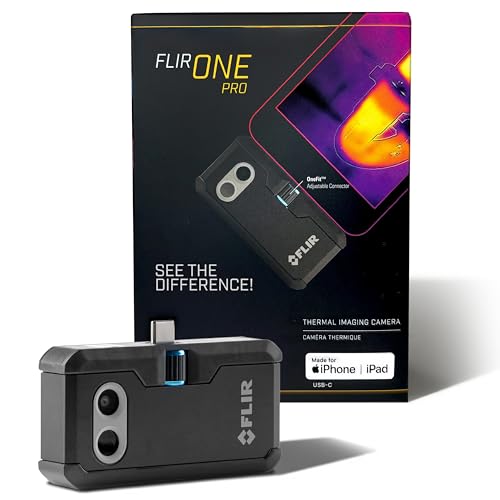 FLIR ONE Pro (phone) FLIR ONE Pro (phone) | Plugs into iPhone/Android; inspector favorite. | Amazon — $349.00 |
 Topdon TC001 Topdon TC001 | High-res phone module at a low price. | Amazon — $262.99 |
 FLIR C5 Compact FLIR C5 Compact | Standalone pocket camera with Wi-Fi. | Amazon — $649.00 |