Fluke Thermal Camera for Iphone: What Homeowners Need to Know

Fluke thermal camera for iPhone setup centers on the Bluetooth pairing process between an iPhone and a Fluke iSee camera, followed by the iOS-specific workflow inside the Fluke Connect mobile application. This article walks through pairing steps in detail, the iOS app’s interface, and the iPhone-specific image export flow to the Files app, AirDrop sharing, and iCloud Drive integration. The focus is the technical iOS workflow rather than the value-proposition comparison with FLIR ONE Pro (covered in a companion article). Citations reference Department of Energy thermography practice, ASHRAE HVAC standards, and InterNACHI infrared certification.
Part of our Thermal Imaging for Homes guide — start there for the full picture →
Fluke thermal camera for iPhone — pairing steps in detail
Pairing a Fluke iSee camera with an iPhone follows the standard Bluetooth Low Energy pairing flow used by most modern accessories, with one important difference: pairing happens through the Fluke Connect app rather than through the iPhone’s general Bluetooth settings. The iPhone’s Bluetooth menu will not show the iSee camera until pairing is initiated from within the Fluke Connect app.
The steps run as follows. Download Fluke Connect from the App Store and install on the iPhone. Open the app and create a Fluke Connect account (or sign in to an existing one). Allow the app to access Bluetooth, camera, photos, and location when iOS prompts during first launch. Power on the iSee camera and place it within 30 feet of the iPhone. From the Fluke Connect app’s main menu, select “Pair Camera” and choose the iSee model from the detected device list.
The pairing handshake typically completes in 5-10 seconds. Once paired, the camera reconnects automatically each time both devices are powered and within Bluetooth range. The pairing persists across iPhone reboots and remains stable through iOS updates. Re-pairing is only needed if the iSee camera or iPhone is factory-reset.
The Fluke Connect iOS app interface
The iOS Fluke Connect app follows standard iOS Human Interface Guidelines, with a tab-bar navigation across the bottom of the screen exposing four main areas: Jobs, Images, Reports, and Settings. The Jobs tab lists active inspection projects in chronological order. The Images tab shows all captured thermal images organized by job and capture date. The Reports tab manages generated PDF reports and templates. The Settings tab handles account configuration, camera pairing management, and cloud sync preferences.
The Jobs view’s primary action button creates a new inspection project with property address, client information, and inspection type. Each new job becomes the active capture target — images captured by the paired iSee camera attach automatically to the active job. The active-job indicator appears at the top of the Images view when capture is in progress.
iOS-specific interface elements include haptic feedback on capture and annotation actions (subtle vibrations confirming each touch action), 3D Touch / Haptic Touch shortcuts on the app icon for “Start New Job” and “Open Last Job,” and SF Symbols-styled iconography that matches iOS conventions. iPhone users transitioning to the app feel immediately at home with the navigation patterns.
Image capture and live-preview on iOS
Image capture happens at the iSee camera, with images streaming to the iPhone over Bluetooth within 2-3 seconds of capture. The iPhone displays each captured image in the app’s recent-captures view as it arrives. The iSee camera’s own screen also displays the image immediately on capture for inspector confirmation before the Bluetooth transfer completes.
Live-preview mode streams the camera’s current view to the iPhone in real time. This is useful for showing a client a thermal pattern in the moment — the inspector points the camera at an area of interest, the homeowner holds the iPhone and watches the thermal pattern. Live preview adds latency (typically 500-800 milliseconds) compared to direct viewfinder use; for finalizing capture composition, the camera’s own screen is faster.
The capture button shortcut from the iPhone screen is also available. Inspectors who prefer to drive capture from the phone (rather than the camera trigger) can press the on-screen capture button in live-preview mode. This is occasionally useful when the camera is positioned in an awkward location and the trigger cannot be reached comfortably. The infrared camera inspection field guide covers capture-position basics for various inspection types.
Annotation tools in the iOS app
Annotation in the iOS Fluke Connect app uses iOS-native text input and gesture support. Observation notes go into a free-form text field with iOS spell-check and predictive text. Severity ratings tap through a four-tier scale (Information, Caution, Warning, Critical) with color-coded badges that carry through to the PDF report.
Spot temperature markers can be placed on images by tapping the desired pixel location. The marker displays the temperature at that point in the user-selected units (Fahrenheit or Celsius). Multiple spots per image are supported. iOS gesture controls include pinch-zoom for examining details and two-finger drag to reposition spot markers.
Image-level edits include rotation, cropping (within a tolerance that preserves thermal data integrity), and IR-Fusion opacity adjustment after capture. The opacity slider blends between full visible-light photograph (0%) and pure thermal image (100%), with intermediate blends typically used at 30-60% for report-quality output.
iOS file export workflow
Once images are captured and annotated, the iOS Fluke Connect app supports several export workflows. The most common is the PDF report export from the Reports tab — the app generates a multi-page PDF combining all images, annotations, and metadata for the selected job, then offers iOS standard share options (Email, AirDrop, Files, Messages, third-party apps via share sheet).
Individual image export is also supported. From the Images view, selecting one or multiple images exposes the iOS share sheet with format options: JPEG (visible-light only), thermal JPEG (heat-map color), IR-Fusion JPEG (blended), and the original RAW thermal data file (for users who need to re-process images in desktop software later).
The Files app integration deserves specific attention. iOS Files supports the Fluke Connect app as a file provider, meaning generated reports and exported images appear in the iOS Files browser alongside iCloud Drive, Google Drive, OneDrive, and other connected services. iPhone users can access exported reports through any iOS app that uses the standard Files picker.
AirDrop sharing of reports between Apple devices
AirDrop is one of the iOS workflow advantages over Android. Inspectors using an iPhone in the field and an iPad or Mac at the office can AirDrop completed reports between devices without uploading to the cloud first. Exported PDFs transfer in seconds over local WiFi or Bluetooth, with the original metadata preserved.
AirDrop also works for sharing reports with iPhone-using clients at the end of an inspection. After completing the field walk and generating the PDF report, the inspector can AirDrop the report to the client’s iPhone in moments. The client has the report in hand before leaving the property, without needing email or cloud upload.
For larger AirDrop transfers (reports with 50+ images), use WiFi rather than Bluetooth by ensuring both devices are on the same WiFi network. AirDrop automatically uses the faster connection when available.
iCloud Drive integration as cloud-storage alternative
Some iPhone users prefer to keep all their files in iCloud Drive rather than using third-party cloud services. The Fluke Connect iOS app supports iCloud Drive as an alternative to Fluke’s hosted cloud storage. In Settings, choose iCloud Drive as the report storage location. Generated reports save to iCloud automatically, syncing across all Apple devices logged into the same Apple ID.
iCloud Drive’s storage tiers (5GB free, 50GB at $0.99/month, 200GB at $2.99/month) are typically sufficient for residential inspection workloads. Working inspectors handling commercial volumes may exceed iCloud Drive and prefer Fluke’s hosted cloud or a business cloud service like OneDrive for Business or Google Workspace.
iCloud Drive sync runs in the background through iOS, with automatic conflict resolution if the same report is edited from multiple devices. The home inspection tools buyer guide covers cloud workflow choices for inspection businesses at various volumes.
iPad use alongside iPhone for inspection workflows
iPad workflow with the same Fluke Connect app extends iPhone capabilities for inspectors who want a larger screen for annotation and report review. The app runs natively on iPadOS with full feature parity. Both an iPhone and an iPad can be paired with the same iSee camera, with images syncing between devices through the shared Fluke Connect account.
The typical multi-device pattern: iPhone in the inspector’s pocket connected to the iSee camera for field capture, iPad in the truck or back at the office for annotation, report generation, and client communication. iCloud Drive sync handles the data flow between devices automatically. The iPad’s larger screen makes thermal image review faster and reduces eye fatigue during long annotation sessions.
iPad Pro models with Apple Pencil support add another layer: the Pencil can be used for precise spot-marker placement and freehand annotations on thermal images. While not required for standard inspection work, it can speed up complex commercial inspections with many fine-detail observations per image.
iOS Shortcuts and automation possibilities
iOS Shortcuts is the Apple automation framework that lets users build custom workflows from app actions. Fluke Connect exposes a limited set of Shortcuts actions (Open Last Job, Start New Job, Generate Report). Inspectors can build personal automations like “When I arrive at this address, open a new job in Fluke Connect” using location-based triggers and the Shortcuts app.
This automation matters more for inspectors handling 10+ jobs per week, where small per-job time savings add up. For occasional homeowner use, the manual flow is straightforward enough that automation does not add meaningful value.
iOS background behavior and app lifecycle
iOS handles app background behavior more aggressively than Android, suspending background apps after a configurable inactivity period. This can affect Fluke Connect’s Bluetooth connection to the iSee camera. To maintain reliable connection during long inspection sessions, keep the app in the foreground during active capture and use the iPhone’s “Stay Awake” setting (Settings > Display & Brightness > Auto-Lock > Never) to prevent screen-off suspension.
For inspections with intermittent capture over a long period (a multi-hour commercial inspection, for example), the app handles reconnection gracefully when returned to the foreground. Images captured at the camera during background time stream to the phone when the app becomes active again. No data is lost; only the live-preview functionality is interrupted during background time.
Battery considerations apply to both devices. The iPhone draws meaningful battery while the app is in foreground with live-preview active. A full-day inspection schedule can require an iPhone charging stop or external battery pack. The iSee camera’s own battery typically lasts 3-6 hours of continuous use; spare batteries or USB-C power banks extend field time. Working inspectors who depend on the workflow daily standardize on a charging setup that keeps both devices above 50% battery throughout the workday.
References
- ENERGY STAR: Seal and Insulate — U.S. Environmental Protection Agency (ENERGY STAR)
- ASHRAE HVAC Technical Resources — American Society of Heating, Refrigerating and Air-Conditioning Engineers
- InterNACHI Infrared Certified Inspector — International Association of Certified Home Inspectors
- NFPA 70B Electrical Predictive Maintenance — National Fire Protection Association
Frequently asked questions
How do I pair a Fluke iSee camera with my iPhone?
Download Fluke Connect from the App Store, create an account, then use the in-app Pair Camera function to discover and connect to your iSee camera. Pairing happens within the app rather than through iOS Bluetooth settings, and typically completes in 5-10 seconds.
Can I export thermal images to the iOS Files app?
Yes. Individual images export through the iOS standard share sheet in several formats (visible-light JPEG, thermal JPEG, IR-Fusion blend, or RAW thermal data). PDF reports also export to Files for access through any iOS app that uses the standard Files picker.
Does the Fluke Connect iOS app support iCloud Drive?
Yes, iCloud Drive is supported as an alternative to Fluke's hosted cloud storage. Reports save to iCloud automatically and sync across all Apple devices logged into the same Apple ID. iCloud Drive's storage tiers handle typical residential inspection workloads.
Can I AirDrop reports from my iPhone to a client's iPhone?
Yes. After generating a PDF report, use the iOS share sheet to AirDrop directly to the client's iPhone. Transfers run over local WiFi or Bluetooth, typically completing in seconds. The client receives the report before leaving the property, without email or cloud upload required.
Thermal imaging cameras
Infrared cameras reveal hidden moisture, missing insulation, and air leaks. Phone-attachment models are the budget entry point; standalone units have higher resolution.
| Product | Why | Buy |
|---|---|---|
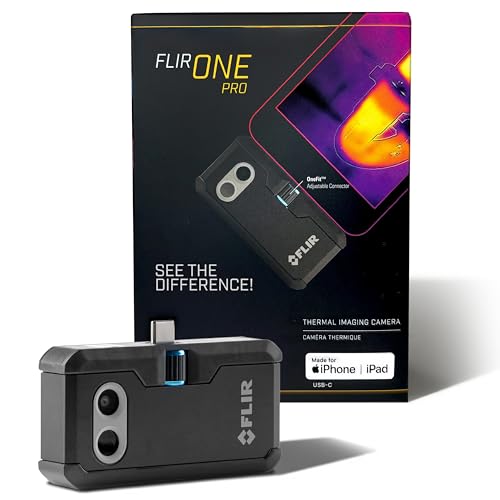 FLIR ONE Pro (phone) FLIR ONE Pro (phone) | Plugs into iPhone/Android; inspector favorite. | Amazon — $349.00 |
 Topdon TC001 Topdon TC001 | High-res phone module at a low price. | Amazon — $262.99 |
 FLIR C5 Compact FLIR C5 Compact | Standalone pocket camera with Wi-Fi. | Amazon — $649.00 |