iPad Thermal Camera: USB-C iPad Air and Pro Setup Guide

An iPad thermal camera is the same hardware sold for iPhone, plugged into an iPad with a USB-C port instead of a phone. Apple’s transition of the iPad Air and iPad Pro to USB-C several years before the iPhone made the iPad the first Apple platform fully compatible with the modern wave of USB-C thermal attachments. For homeowners, inspectors, and trades who carry an iPad in the field anyway, running thermal on the larger 11- or 13-inch screen has practical advantages over the iPhone form factor. This guide covers which iPads work, which thermal attachments are compatible, where the larger screen helps, and where the iPad form factor creates new tradeoffs in field use.
Part of our Thermal Imaging for Homes guide — start there for the full picture →
Which iPads work with thermal cameras
USB-C is the connector requirement. The iPad Pro with USB-C launched in 2018, the iPad Air with USB-C in 2020, the base iPad with USB-C in 2022, and the iPad mini with USB-C in 2021. Any iPad from those launches forward accepts the same USB-C thermal attachments sold for USB-C iPhones and Android phones. Older iPads with Lightning ports require a Lightning-variant attachment, which FLIR still produces in limited volume but Seek and several other brands have discontinued.
Within the USB-C iPad lineup, the higher-end Pro and Air models offer faster processors and brighter displays, which helps with real-time thermal preview smoothness and outdoor visibility. The base iPad works fine for static imaging but can stutter slightly on high-refresh thermal video. For platform context across iOS hardware see the iPhone thermal camera connector guide.
Which thermal attachments support iPad
FLIR One Gen 3 USB-C, FLIR One Pro USB-C, Seek Thermal CompactPRO with USB-C adapter, Topdon TC002, and InfiRay P2 Pro USB-C all support iPad. The companion apps from each manufacturer run as iPad apps with universal iOS builds, meaning the same app binary serves iPhone and iPad with adaptive layouts. FLIR’s app uses the extra screen real estate by enlarging the thermal preview pane and adding a side panel for measurement readouts.
App availability is the gotcha. Some smaller-brand attachments ship with iPhone-only apps that run in compatibility mode on iPad, presenting a stretched iPhone-sized interface in the center of the iPad screen. That works functionally but does not exploit the larger display. Buyers prioritizing iPad use should verify the app is a native iPad build before purchase. The FLIR One iOS overview covers the iOS app architecture in more detail.
The larger screen advantage for thermal imaging
Thermal images at 160-by-120 resolution benefit dramatically from being displayed larger. On a 6.1-inch iPhone screen, each thermal pixel renders as a small square that loses some interpretive context. On an 11-inch iPad Air or 13-inch iPad Pro, the same image stretches across more screen area, making subtle temperature gradients easier to read at a glance. Color palettes like iron and rainbow show finer differentiation between adjacent temperature bands when each pixel is larger.
For two-person inspection teams the iPad also serves as a shared display. One operator holds the iPad and dongle while the second operator marks findings on the same screen. The collaboration is awkward on an iPhone screen but natural on an iPad. Real estate buyers walking a property with their agent can both see thermal findings live without crowding around a phone.
Annotation is the third advantage. iPadOS supports Apple Pencil input across the OS. Inspectors using Apple Pencil can draw arrows, circle anomalies, and add typed notes directly on captured thermal images inside the FLIR or Seek app, then export the marked-up image into a report-writing app like Spectora or HomeGauge.
Where the iPad form factor creates new tradeoffs
An iPad is bigger and heavier than an iPhone. Holding an iPad Air at arm’s length for a thirty-minute attic scan is tiring in a way that the iPhone is not. The grip is different; without a case with a hand strap, the iPad is awkward to hold one-handed for thermal capture. Inspectors who plan extended iPad-based thermal work usually add a hand-grip case or a small tripod with a clamp.
The dongle hanging off the bottom of an iPad is more vulnerable than the same dongle hanging off an iPhone. The iPad’s larger lever arm puts more torque on the USB-C connector if the dongle gets bumped against a doorway or a stud bay. Some inspectors use a short USB-C extension cable to relocate the dongle off the iPad body, though this adds points of failure.
Outdoor visibility on the iPad is excellent on the Pro’s mini-LED display but only adequate on the base iPad in bright sun. The iPhone’s smaller, OLED display in many models actually reads better in direct sunlight than the base iPad’s LCD. For roof and exterior thermal work, either bring a sun hood or accept that the iPad is mostly an indoor and shaded-environment tool.
App workflows that exploit iPad-specific features
The Files app on iPadOS provides drag-and-drop file management between the FLIR app, Photos, and any cloud storage like iCloud Drive, Google Drive, or Dropbox. Inspectors can capture thermal images, drag them into a project folder, and sync to a team workspace without leaving the iPad. The same workflow on iPhone exists but is more cumbersome because of the smaller screen.
Split View and Slide Over let an inspector run the FLIR app alongside Notes, Pages, or a report-writing app. Captured thermal images can drop into a draft report in real time. This multitasking is unique to iPad among the iOS device lineup; the iPhone supports app switching but not concurrent split-screen apps in the same way.
Stage Manager on iPadOS 16 and later adds windowed multitasking that resembles a Mac. For inspectors who already manage windows on a Mac, the consistency shortens the learning curve. The home inspection tools pillar covers how thermal imaging integrates into the broader inspector workflow.
Battery and thermal management on iPad
iPads have larger batteries than iPhones, so running a thermal attachment over a full inspection day stresses the battery less. A typical FLIR One Gen 3 session on an iPad Pro might draw the iPad battery from 100 percent to 70 percent over three hours of intermittent use, where the same session on an iPhone might drop from 100 to 50. The dongle’s own internal battery still needs charging between uses; that battery is unchanged whether the host device is iPhone or iPad.
Thermal throttling on the iPad is rare under normal use. Sustained 4K video recording can warm an iPad Pro enough to throttle its display brightness, but thermal imaging at 8.7 Hz from a 160-by-120 sensor is a light workload by comparison. iPads in summer attics can still get hot enough to throttle, especially the Pro with its higher-performance processor, so giving the iPad cooldown breaks during long inspections matters.
Comparing iPad versus iPhone for inspector reporting
Inspectors who carry both devices often default to iPhone for field thermal capture and iPad for report review. The iPhone wins on portability; the iPad wins on review and annotation. The handoff is seamless through iCloud Photo Library, which syncs captured thermal images to both devices within a few minutes.
For inspectors who carry only one device for thermal work, the choice depends on workflow priority. Field-first inspectors who want one hand free for note-taking pick iPhone. Office-first inspectors who do most review work back at the desk pick iPad. Both choices are valid; the kit decision should match the actual workflow rather than aspiration.
For homeowners doing self-assessment rather than professional inspection, the iPhone form factor is usually the right choice. The iPad’s larger screen advantage matters less when the operator is the only viewer and the inspection happens occasionally rather than daily.
Setting up the iPad thermal workflow for the first time
First-time setup runs about fifteen minutes on an iPad. Charge the thermal dongle’s internal battery via USB-C for at least an hour. Install the manufacturer’s iOS app from the App Store; FLIR One, Seek Thermal, or Topdon’s app depending on the brand. Open the app on the iPad and accept camera and storage permissions. Connect the dongle to the iPad’s USB-C port. The app should auto-launch the camera interface within two seconds.
iPad-specific setup includes deciding whether to use the iPad in portrait or landscape orientation for thermal capture. Landscape gives a wider field of view for scanning rooms; portrait gives more vertical area for scanning floor-to-ceiling. The FLIR app supports rotation; the captured image orients automatically. For team workflows, the operator should also enable iCloud Photo Library so captured images sync to a Mac or other devices in real time.
Calibration on first use takes the same form as on iPhone. Tap the calibrate icon to close the internal shutter for a quarter second and renormalize the bolometer array. Set emissivity to 0.95 for most building materials. The energy department’s thermography guidance covers when to recalibrate during a session.
iPad thermal capture in commercial inspection contexts
Commercial inspectors and building engineers benefit from the iPad form factor in ways that residential inspectors may not. A commercial building walkthrough often involves multiple stakeholders: the building manager, the engineer, the tenant rep. The iPad screen lets the inspector show findings live as they capture, which speeds discussion. A small huddle around an 11-inch iPad screen is feasible; around a 6-inch iPhone screen is not.
Commercial buildings also have more complex HVAC, more layered envelope assemblies, and more equipment to scan. The iPad’s larger storage and battery handle longer sessions better than an iPhone. Inspectors who run all-day commercial inspections often prefer iPad-attached thermal for these reasons. The InterNACHI commercial inspection materials cover scope differences between residential and commercial thermal work.
Use cases where iPad thermal makes sense
Real estate inspection teams find the iPad form factor useful for shared review with the client during the walkthrough. Building science consultants who want larger working area for envelope analysis benefit from the bigger screen. Architects and energy auditors who already carry iPads for design work prefer the single-device kit. HVAC contractors troubleshooting commercial spaces with multiple stakeholders watching get value from the bigger display.
Solo home inspectors doing residential pre-purchase work usually default to iPhone because of the one-handed form factor and the kit weight. The iPad is the second device, not the first. For solo inspectors who already carry an iPad for report writing, occasionally running thermal off the same iPad makes sense; investing in iPad-specific thermal hardware purely for the screen size usually does not.
References
- ENERGY STAR: Seal and Insulate — U.S. Environmental Protection Agency (ENERGY STAR)
- Infrared Thermography for Inspectors — InterNACHI
- Building Inspection Standards — International Code Council
- ASHI Standards of Practice — American Society of Home Inspectors
Frequently asked questions
Does an iPad thermal camera need a special model versus iPhone?
No. The same USB-C thermal attachments sold for USB-C iPhones work on USB-C iPads. The hardware is identical; the app adapts to the larger iPad screen automatically when the developer has shipped a native iPad build.
Which iPads support thermal cameras?
Any USB-C iPad. That includes iPad Pro from 2018 onward, iPad Air from 2020 onward, iPad mini from 2021 onward, and the base iPad from 2022 onward. Older Lightning iPads need Lightning-variant attachments which are less common.
Is the iPad screen really better for thermal imaging?
Yes for shared viewing and annotation. The larger 11- or 13-inch display shows 160-by-120 thermal frames at higher visual size, making temperature gradients easier to read. The tradeoff is more weight and less one-handed convenience compared to an iPhone.
Can I use Apple Pencil to annotate thermal images?
Yes. iPadOS supports Apple Pencil input system-wide. Captured thermal images can be marked up directly inside the FLIR app, Photos, or any drawing app. Exported annotated images drop into report-writing software.
Thermal imaging cameras
Infrared cameras reveal hidden moisture, missing insulation, and air leaks. Phone-attachment models are the budget entry point; standalone units have higher resolution.
| Product | Why | Buy |
|---|---|---|
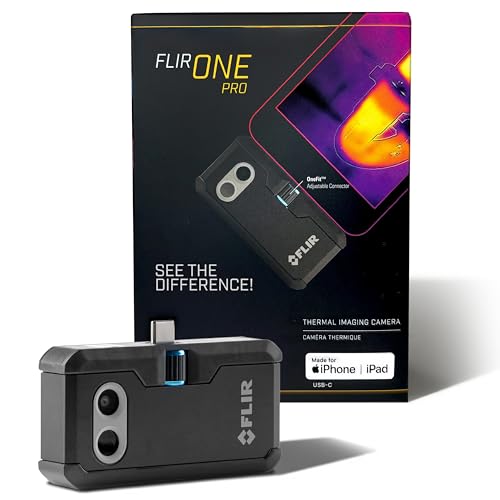 FLIR ONE Pro (phone) FLIR ONE Pro (phone) | Plugs into iPhone/Android; inspector favorite. | Amazon — $349.00 |
 Topdon TC001 Topdon TC001 | High-res phone module at a low price. | Amazon — $262.99 |
 FLIR C5 Compact FLIR C5 Compact | Standalone pocket camera with Wi-Fi. | Amazon — $649.00 |