Fluke Thermal Camera Android: What Homeowners Need to Know

Fluke thermal camera Android use centers on the Fluke Connect mobile application running on the Android operating system. This article walks through the Android user’s workflow with a Fluke iSee thermal camera — what the app does once paired, how the field capture flow runs, what the cloud sync process looks like, and the Android-specific features and limitations users encounter. The focus here is the workflow experience, not the pairing steps (covered in companion articles for Android and iPhone-specific setup). Citations reference Department of Energy thermography practice, ASHRAE HVAC guidance, and InterNACHI infrared certification — not manufacturer documentation.
Part of our Thermal Imaging for Homes guide — start there for the full picture →
Fluke thermal camera Android — the workflow at a glance
Once an Android phone is paired with a Fluke iSee camera (TC450, TC550, TC600, or TC900 PRO), the workflow runs in five phases. Open the Fluke Connect app and confirm the camera connection. Start a new inspection job in the app interface. Capture thermal images at the camera; images stream to the phone automatically over Bluetooth. Annotate captured images in the app with observations and severity ratings. Generate a PDF report and sync to cloud storage.
The workflow is largely consistent across Android versions from Android 9 onward, with minor interface variations across Android device manufacturers (Samsung, Google Pixel, OnePlus, Motorola). The Fluke Connect app is a standard Android application available through Google Play, with no manufacturer-specific dependencies.
Inside the Fluke Connect Android app: interface walkthrough
The Fluke Connect Android app’s home screen lists active inspection jobs in chronological order. Each job displays the property address, job creation date, and a count of captured images. Tapping any job opens that job’s detail view, where images appear in a thumbnail grid with capture-time metadata.
The capture controls on the home screen include a camera live-preview button, which opens a streaming view of the connected iSee camera’s current image. The live preview is useful during real-time client viewing, where the inspector points the camera at an area of interest and the homeowner watches the thermal image on the phone screen.
Job-level controls include the export-to-PDF function, share-via-email, share-via-cloud-storage (Google Drive, OneDrive, Dropbox depending on Android device defaults), and archive-job for completed work. The interface follows Android Material Design conventions, with the bottom navigation bar exposing the four main areas: Jobs, Images, Reports, and Settings.
Image capture workflow during a typical inspection
Field capture begins with the inspector holding the iSee camera in their dominant hand and the Android phone in the other. The phone displays the Fluke Connect app live-preview view; the camera handles the actual capture. The inspector points the camera at the target area, watches the thermal pattern on either the camera’s own screen or the phone screen, and presses the camera’s capture trigger when satisfied with the framing.
The captured image transfers to the phone over Bluetooth Low Energy 5.0 within 2-3 seconds. The phone displays the captured image in the app’s recent-captures view, with a prompt to add an observation note immediately or defer until later. Working inspectors typically defer annotation until after the field walk, returning to a comfortable position to add notes for all captured images at once.
For homeowner use, the same workflow applies but with simpler annotation needs. A homeowner scanning their own house might capture 5-10 images of suspected problem areas, then review them in the app and decide which warrant follow-up by a contractor. The infrared camera inspection field guide covers what to look for in captured thermal images.
Annotation features in the Android app
The Fluke Connect Android app exposes several annotation tools for captured images. Observation text notes can be added to any image, with a free-form text field for description and follow-up recommendations. Severity ratings use a four-tier scale (Information, Caution, Warning, Critical) with color-coding that carries through to the generated PDF report.
Spot temperature markers can be added to images at specific pixel locations, with temperature readings displayed. Multiple spots per image are supported, useful for showing relative differences between connections on an electrical panel or between supply registers in HVAC inspection. Spot markers carry through to the PDF report with the temperature values labeled.
Geographic location tagging happens automatically through the Android device’s GPS, attaching latitude/longitude coordinates to each image when location permissions are granted to the app. The metadata appears in image properties and can be excluded from generated reports if client privacy concerns require.
Cloud sync and storage on Android
Captured images and annotated jobs sync to Fluke’s hosted cloud infrastructure when an internet connection is available. The sync is bidirectional — an inspector who edits annotations on a different device sees updates synchronized across all devices logged into the same Fluke Connect account. The Android app handles sync automatically in the background; manual sync is also available from the Settings menu.
Cloud storage is included with the Fluke Connect account at a default tier sufficient for typical residential inspection workloads. Higher-volume users (commercial inspectors, predictive maintenance services) may exceed the default storage and need a paid storage tier. The app warns when approaching storage limits and provides upgrade options.
For Android users concerned about cloud storage, the app supports local-only storage as an alternative configuration. Images stay on the phone, reports generate locally, and no data leaves the device. This option works for homeowners and small landlords who do not need multi-device sync. The cloud features remain available if turned on later.
PDF report generation in the Android app
Report generation runs from the Jobs view: select a completed job, choose the PDF report option, and select a template. The Fluke Connect app includes several built-in templates for different inspection types (residential, electrical, HVAC, building envelope). Custom templates can be created in the app or imported from desktop Fluke Connect software.
The PDF report combines the captured thermal images, IR-Fusion blended views, annotations, severity ratings, spot temperature measurements, and any general observations entered for the job. Company branding (logo, address, disclaimer text) appears in the report header per the account settings. Generated PDFs are typically 2-10 MB depending on image count.
Reports can be shared directly from the app via email, exported to Google Drive, OneDrive, or Dropbox, or sent to print services. Android’s standard share-sheet integration exposes whatever sharing destinations the device supports. For homeowner use, emailing the report to a contractor’s address is the most common workflow.
Android-specific considerations: device variation and storage
Android devices vary significantly across manufacturers and price tiers. Premium devices (Samsung Galaxy S series, Google Pixel) typically run the Fluke Connect app smoothly with no performance issues. Budget devices (sub-$300 phones) may experience slower image loading and occasional sync delays. The app’s minimum supported Android version covers nearly all devices from 2019 onward.
Storage management matters for high-volume users. Thermal images at full resolution are typically 1-2 MB each; a busy inspector captures 50-200 images per day. Without cloud sync configured, local storage fills within weeks. The app’s settings include automatic cleanup of images older than a configurable threshold once they have been synced to cloud storage.
Samsung-specific considerations include DeX mode, which lets a Samsung phone connect to an external monitor for larger-screen workflows. The Fluke Connect app works in DeX mode, providing a desktop-style interface useful for office-based annotation and report review. Other Android manufacturers offer similar large-screen integration with varying degrees of app compatibility.
Android-iOS feature parity in the Fluke Connect ecosystem
The Fluke Connect app maintains substantial feature parity between Android and iOS versions. The same capture workflow, annotation tools, severity ratings, and report templates exist on both platforms. Cross-platform users (inspectors with multiple devices, or businesses where field staff use mixed phones) can expect consistent experience regardless of which platform any individual team member runs.
The minor differences are in platform-native integrations. Android exposes share-sheet integration to whichever apps the user has installed (Google Drive, Gmail, OneDrive, Slack, etc.) while iOS integrates with the standard iOS share sheet and AirDrop. Notification handling differs slightly per platform conventions. Report rendering is identical across platforms.
Real-time client viewing during inspection
One feature inspectors value highly is real-time client viewing during the walk-through. The Android phone displays the live thermal image from the connected iSee camera; the inspector shows the phone to the homeowner while pointing the camera at a finding. The homeowner sees the thermal anomaly in real time and the conversation happens around the actual finding rather than around an abstract explanation.
For Front Range home buyers attending inspection of a property they are considering, this real-time viewing changes the experience. The buyer sees insulation defects, suspected moisture areas, and electrical hot spots in the moment, which makes the inspector’s written report more meaningful. The home inspection tools buyer guide covers how phone-companion thermal cameras integrate into the buyer walk-through.
Android battery optimization settings that affect the app
Android’s aggressive battery optimization can interfere with Bluetooth Low Energy connections to the iSee camera. Various device manufacturers (Samsung, OnePlus, Xiaomi) apply different default optimization rules that may close the Fluke Connect app’s background processes after a few minutes of inactivity, breaking the camera connection in the middle of an inspection.
The fix on most Android devices: open Settings, locate Battery or Power management, find App battery management or similar, locate Fluke Connect in the app list, and set the optimization to “Not optimized” or “No restrictions.” This allows the app to maintain Bluetooth connections during long inspection sessions without interruption.
On Samsung Galaxy devices specifically, the Device Care settings include a “Put unused apps to sleep” feature that can also interfere. Add Fluke Connect to the exception list (“Never sleeping apps”) to prevent the system from suspending the camera connection during multi-stop inspection days.
Limitations and workarounds in the Android workflow
The Android Fluke Connect app has a few known limitations. Bluetooth Low Energy connection can drop in environments with significant RF interference (industrial settings, cellular tower vicinity, large crowds). Reconnection is usually automatic but may require the app to be closed and reopened in stubborn cases.
Image capture during low-battery states on either device can fail to sync immediately, with images stored on the camera until both devices are at adequate battery. Working inspectors carry portable power banks to avoid this scenario during full-day inspections. The Department of Energy publishes general thermographic inspection workflow guidance that applies regardless of equipment specifics, useful for inspectors building their own field protocols.
Connectivity issues during cloud sync are typically network-related rather than app-related. Multi-property inspection days through neighborhoods with weak cellular coverage can leave images queued locally for upload until WiFi becomes available. The app handles queued uploads transparently in the background once connectivity returns, but inspectors should not assume cloud-available access until the sync indicator confirms.
References
- ENERGY STAR: Seal and Insulate — U.S. Environmental Protection Agency (ENERGY STAR)
- ASHRAE HVAC Technical Resources — American Society of Heating, Refrigerating and Air-Conditioning Engineers
- InterNACHI Infrared Certified Inspector — International Association of Certified Home Inspectors
- NFPA 70B Electrical Predictive Maintenance — National Fire Protection Association
Frequently asked questions
Does the Fluke Connect app work on all Android phones?
The app works on Android 9 and later, which covers nearly all phones from 2019 onward. Performance is best on premium devices (Samsung Galaxy S series, Google Pixel) but adequate on most modern Android phones. Bluetooth Low Energy 5.0 support is required, available on all modern Android devices.
Can the Android Fluke Connect app run offline?
Yes. The app supports local-only operation without cloud sync. Captured images stay on the phone, reports generate locally, and no data leaves the device. Cloud features can be enabled later without losing existing local data.
How does the Android app handle image storage for high-volume users?
Cloud sync moves images off the device automatically once captured. Local storage cleanup of synced images is configurable in app settings. Working inspectors capturing 50-200 images per day rely on cloud sync to prevent local storage from filling within weeks.
Does the Fluke Connect Android app support Samsung DeX or large-screen mode?
Yes, the app runs in Samsung DeX mode for desktop-style workflows on external monitors. Other Android large-screen integrations (foldable phones, tablets with display output) generally work but may have minor interface adaptation differences.
Thermal imaging cameras
Infrared cameras reveal hidden moisture, missing insulation, and air leaks. Phone-attachment models are the budget entry point; standalone units have higher resolution.
| Product | Why | Buy |
|---|---|---|
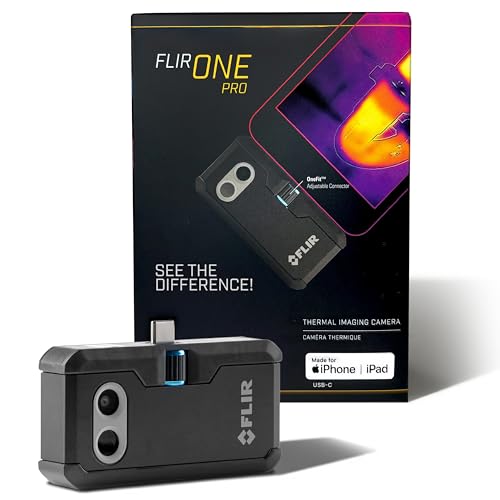 FLIR ONE Pro (phone) FLIR ONE Pro (phone) | Plugs into iPhone/Android; inspector favorite. | Amazon — $349.00 |
 Topdon TC001 Topdon TC001 | High-res phone module at a low price. | Amazon — $262.99 |
 FLIR C5 Compact FLIR C5 Compact | Standalone pocket camera with Wi-Fi. | Amazon — $649.00 |