Infrared Camera App for iPhone: 2026 Buyer Guide
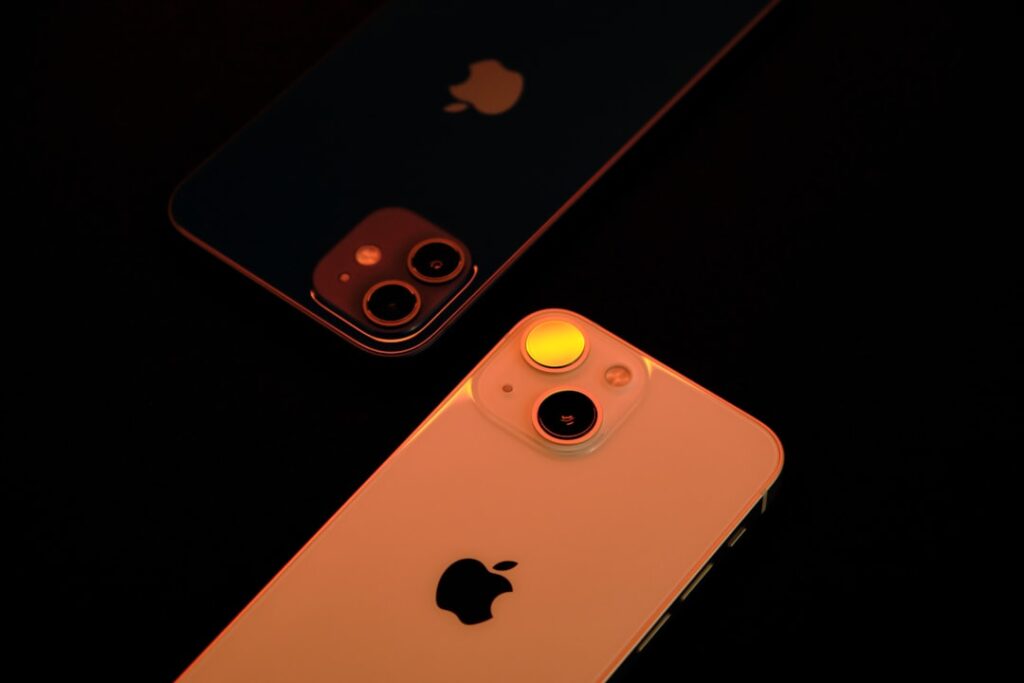
The infrared camera app for iPhone category combines an iOS app with a physical thermal-imaging accessory that plugs into the iPhone or pairs via Bluetooth. The app handles image capture, review, color palette selection, and export; the accessory provides the actual thermal sensor and optics. This guide walks through the major app ecosystems available in 2026, the iOS version compatibility considerations that determine which apps run on which iPhones, and the specific impact of the iPhone 15 USB-C transition on existing Lightning-based accessories. The goal is not a brand shootout; it is a framework for matching the iPhone-attached thermal capability to the buyer’s intended workflow with attention to compatibility risks that iPhone users face that Android users do not.
Part of our Thermal Imaging for Homes guide — start there for the full picture →
What an iPhone infrared camera app does
The app handles five core functions. Image capture from the connected thermal accessory, including focus, color palette selection, level-and-span temperature range adjustment, and capture triggering. Image review with side-by-side thermal and visible-light comparison where the accessory provides both sensors. Radiometric measurement display, including spot temperatures, area averages, and isotherm overlays for accessories that produce per-pixel temperature data. Image export to camera roll, email, cloud storage, or specialized report-template formats. Firmware management for the connected accessory, including update installation when the manufacturer releases new firmware.
App quality varies widely across the iPhone thermal market. Mature apps from established manufacturers (FLIR, Seek, Hikmicro) generally produce reliable imagery with sustained iOS update support. Less mature apps from smaller manufacturers sometimes break with new iOS versions or lose features during major updates. Reading recent App Store reviews before buying any accessory surfaces these patterns quickly. The home inspection tools buyer guide covers the broader hardware ecosystem.
The major iPhone thermal apps in 2026
Four apps hold the bulk of the iPhone thermal accessory market. The FLIR ONE app pairs with the FLIR ONE Pro and FLIR ONE Pro LT accessories. It offers MSX (Multi-Spectral Dynamic Imaging) overlay that blends thermal with visible-light edges for spatial context, supports radiometric measurement, and exports radiometric JPEG files that retain per-pixel temperature data. The app has the longest iOS update history of any thermal accessory app.
The Seek Thermal app pairs with the Seek CompactPRO and Seek Thermal Reveal series. It offers slightly better thermal sensitivity rendering than the FLIR app at comparable sensor specifications and supports a wide color palette selection. The Hikmicro Viewer app pairs with the Hikmicro Eco and other Hikmicro phone-attached accessories. Hikmicro entered the iOS market later than FLIR and Seek but has caught up on feature parity. The Topdon TC app supports the Topdon thermal camera line, which targets automotive and HVAC technician markets with some specialized measurement features.
iOS 14+ compatibility considerations
Most current iPhone thermal apps require iOS 14 or higher. The bulk of the market targets iOS 16 or higher in 2026 because newer iOS versions provide better USB device handling and improved camera framework integration. Apps that supported earlier iOS versions have generally moved their support floor up over time as Apple introduces new APIs and deprecates older ones.
Verify compatibility before buying by checking the app listing in the App Store for the “Compatibility” section, which lists the minimum iOS version supported. Verify that the iPhone hardware supports the required connection method (Lightning for older accessories, USB-C for newer ones). The compatibility constraint usually rules out very old iPhones (iPhone 7 and earlier) more than it rules out current models, but the verification step takes 30 seconds and prevents wasted accessory purchases.
The iPhone 15 USB-C transition impact
The iPhone 15 series introduced USB-C in place of the Lightning connector that defined iPhones since 2012. The transition fragmented the iPhone thermal accessory market because existing accessories were either Lightning-only or required a Lightning-to-USB-C adapter that did not always carry full data passthrough. The accessory market took 12 to 18 months to consolidate around USB-C-native designs for the iPhone 15 and later.
Current buyers face three scenarios. iPhone 14 and earlier owners can buy Lightning-native accessories that work without adapters. iPhone 15 and later owners should buy USB-C-native accessories or verified Lightning-to-USB-C accessory bridges from the manufacturer. Mixed-device households that share a thermal accessory across both phone generations need either two adapters or a Bluetooth-paired accessory that avoids the port distinction. Each option works; the planning step is checking accessory compatibility against the specific iPhone model before purchase.
Common iPhone thermal app workflows
Five workflows recur in iPhone thermal use. Real-estate buyer property tours where the iPhone serves as both note-taking device and imaging tool. Energy auditor field work where iPhone-based reporting integrates thermal imagery with other field data. Maintenance technician troubleshooting where the same iPhone runs work-order apps and captures imagery for documentation. Homeowner periodic envelope scanning where occasional use does not justify dedicated standalone hardware. Insurance adjuster documentation where the iPhone’s photo and video integration captures both thermal and visible evidence in one device.
Each workflow benefits from the iPhone’s existing ecosystem rather than requiring separate workflow tooling. The thermal accessory becomes a peripheral that extends the iPhone’s existing utility rather than a standalone device with its own learning curve. For users who already orient their field work around the iPhone, the integration is the value proposition. Sibling guides covering specific tasks include the can iPhone do thermal imaging guide and the thermal camera app comparison for Android for cross-platform context.
What iPhone thermal apps cannot do
Three limitations recur across the iPhone thermal app category. First, the iPhone screen, while excellent for many tasks, washes out in direct sunlight, which limits outdoor scanning during bright daytime. Carrying a screen-shading hood (a $15 to $25 accessory) mitigates this for serious outdoor work. Second, sustained thermal imaging drains the iPhone battery rapidly because the accessory often draws power through the connection. A two-hour inspection session can drop the iPhone to low battery, which both ends the session and risks leaving the user without phone service.
Third, professional reporting workflows that integrate thermal imagery into desktop-based report templates require additional steps to transfer files and align them with templates. Some apps offer direct integration with major inspection-report platforms (HomeGauge, Spectora, Horizon), which reduces the friction. Others require export-and-import workflow that takes longer per report. Verifying the report-integration workflow matters for professional users with daily reporting needs.
Setup workflow for first-time iPhone thermal users
Setup follows three steps. First, install the manufacturer’s app from the App Store and grant the requested permissions for camera, photos, and location. Second, connect the thermal accessory to the iPhone (Lightning or USB-C depending on the accessory) or pair via Bluetooth. The app should detect the accessory and launch the live viewfinder automatically. Third, run a quick calibration scan in a room with known temperature contrasts (warm appliance, cool window) to verify imagery shows expected patterns.
First-session issues are usually permission-related. The app needs access to the camera, photo library, and accessory, which iOS sometimes prompts for separately. If the accessory connects but produces no imagery, force-quit the app, reconnect the accessory, and relaunch. Most setup issues resolve at this layer rather than requiring accessory return. Manufacturer support documentation usually covers the common first-session troubleshooting steps in detail.
Cost framework for iPhone thermal kits
Pricing sorts by sensor tier and accessory type. Entry-tier iPhone thermal accessory (160 by 120 sensor): $200 to $400. Mid-tier (256 by 192 sensor): $500 to $900. Higher-resolution (384 by 288 or above): $1,000 to $2,000. Add accessories: portable battery pack ($30 to $80), padded carry case ($25 to $50), screen-shading hood ($15 to $25), Lightning-to-USB-C adapter for cross-generation iPhones ($25 to $40).
iPhone-attached thermal accessories typically cost slightly more than equivalent Android-attached units because the iPhone-compatible market is smaller and the development costs amortize across fewer SKUs. The premium runs roughly 10 to 20 percent versus Android-equivalent products. For users committed to the iPhone ecosystem, the premium is unavoidable; for users with flexibility across platforms, the Android equivalent often delivers the same sensor performance at lower total cost.
App update lifecycle and the long view
The accessory lifespan depends as much on app and iOS update compatibility as on hardware durability. Established manufacturers (FLIR, Seek, Hikmicro) generally update their apps annually to maintain iOS compatibility. Smaller manufacturers sometimes lag, which can leave accessories functionally retired even though the hardware works mechanically. Buying from a vendor with a track record of consistent iOS update support protects the investment.
Apple’s annual iOS release cycle creates predictable risk points. Each September brings a new major iOS version that can break apps not updated to match. Most thermal apps push compatibility updates within four to eight weeks of new iOS releases. Users with daily-use thermal workflows benefit from waiting two to three months after a major iOS release before installing it on their primary thermal-imaging iPhone, which avoids brief compatibility gaps during the post-release update cycle.
iPad workflows for thermal apps
Most iPhone thermal apps also run on iPad with the same accessory hardware. The larger screen produces noticeably better image review and report-building experience for users who work from a desk or vehicle-based mobile office. The iPad workflow works particularly well for energy auditors who collect imagery in the field and then review and annotate captures back at a desk before finalizing client reports.
The trade-off is that the iPad lacks the constant pocket presence of the iPhone, which makes spontaneous field captures less convenient. Many professionals run a dual-device workflow: iPhone for field capture, iPad for review and reporting. The same app and accessory work on both devices, and cloud sync moves the captures between them automatically. The dual-device approach costs more in hardware but produces a faster, less error-prone reporting workflow than relying on iPhone-only capture and review.
Thermal video versus still capture
Most iPhone thermal apps support both still image capture and thermal video recording. Still images are the default workflow for documentation because they integrate easily into reports, transfer quickly, and store compactly. Thermal video is useful for capturing dynamic phenomena: HVAC cycle behavior during start-up, electrical panel changes under varying load, evaporative cooling patterns during a moisture-tracking exercise.
The trade-off is file size. Thermal video files run roughly 10 to 50 megabytes per minute depending on the app and resolution, which fills iPhone storage faster than still capture. Users who frequently record video should plan storage capacity accordingly or rely on cloud upload to clear local storage between sessions. The radiometric video format used by some manufacturers also requires desktop software to extract per-pixel temperature data for analysis, which adds a workflow step beyond simple playback.
References
- ENERGY STAR: Seal and Insulate — U.S. Environmental Protection Agency (ENERGY STAR)
- Infrared Imaging in Home Inspection — InterNACHI
- ASHI Standards of Practice — ASHI
Frequently asked questions
Which iPhone thermal app is best?
The FLIR ONE app has the longest iOS update history and broadest feature set. The Seek Thermal app offers strong rendering at comparable sensor specs. The Hikmicro Viewer app has caught up to FLIR and Seek with competitive pricing on accessories. Match the app to the accessory you plan to buy.
Does iPhone 15 work with older Lightning thermal cameras?
Not natively. iPhone 15 uses USB-C, which requires either a USB-C-native accessory or a verified Lightning-to-USB-C adapter from the manufacturer that supports full data passthrough. Standard Lightning-to-USB-C adapters that work for charging often fail for accessory data.
How much does an iPhone thermal accessory cost?
Entry-tier (160 by 120 sensor): $200 to $400. Mid-tier (256 by 192): $500 to $900. Higher-resolution (384 by 288 or above): $1,000 to $2,000. Add screen-shading hood, battery pack, and carry case for $60 to $150 in accessories. iPhone-compatible units typically run 10 to 20 percent above Android equivalents.
Will my old iPhone work with thermal accessories?
Most apps require iOS 14 or higher, with the bulk of the market targeting iOS 16 or higher in 2026. iPhones from iPhone 8 onward usually work; iPhone 7 and earlier often do not. Verify compatibility in the App Store listing before buying.
Thermal imaging cameras
Infrared cameras reveal hidden moisture, missing insulation, and air leaks. Phone-attachment models are the budget entry point; standalone units have higher resolution.
| Product | Why | Buy |
|---|---|---|
 FLIR ONE Pro (phone) FLIR ONE Pro (phone) | Plugs into iPhone/Android; inspector favorite. | Amazon — $349.00 |
 Topdon TC001 Topdon TC001 | High-res phone module at a low price. | Amazon — $199.99 |
 FLIR C5 Compact FLIR C5 Compact | Standalone pocket camera with Wi-Fi. | Amazon — $611.50 |