FLIR One App: What Homeowners Need to Know
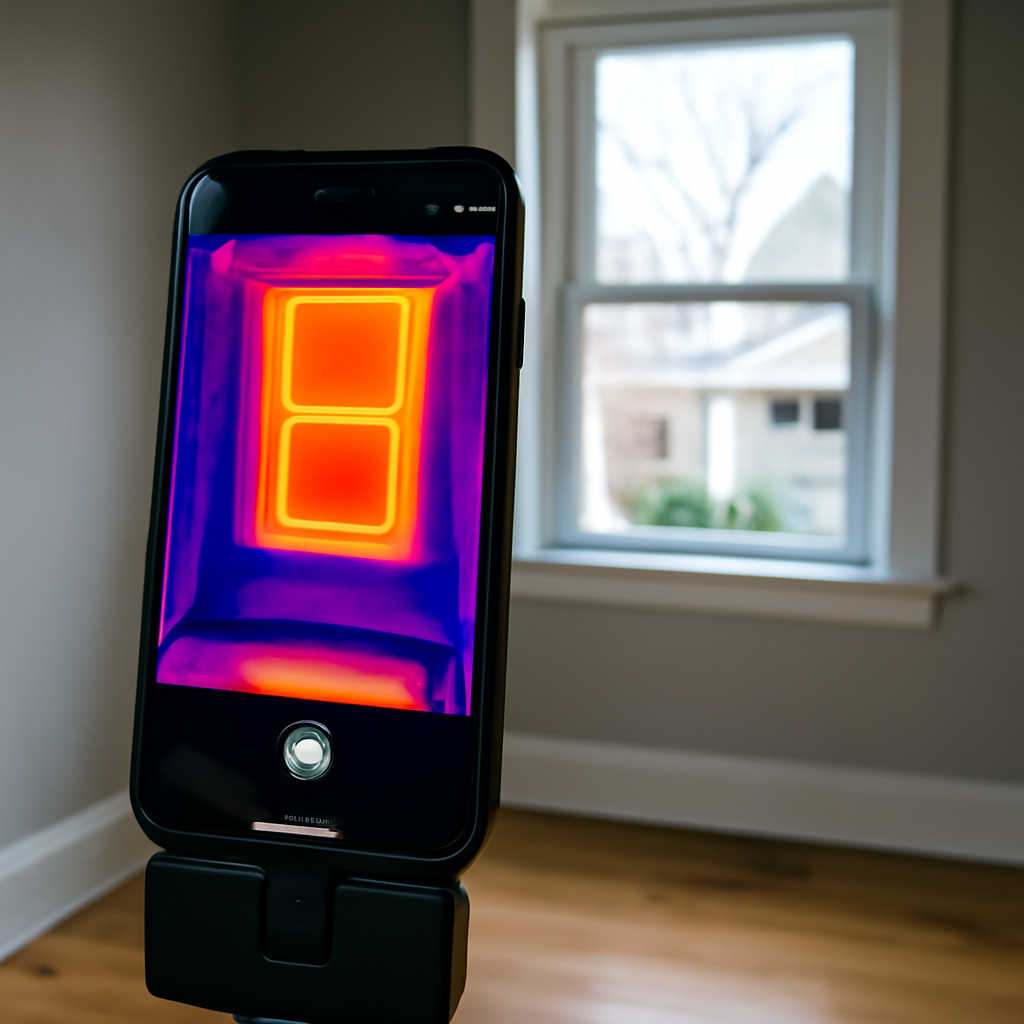
The hardware gets the attention, but the software is where a phone-based thermal camera becomes useful. The FLIR One app is the companion application that pairs with FLIR’s plug-in thermal cameras to display, measure, annotate, and share thermal images on a smartphone. Understanding the app — its features, its settings, and the way it shapes the image — matters as much as the sensor itself, because the same hardware produces very different results depending on how the software is configured. This guide treats the app as software and explains what it does and does not do.
What is the FLIR One app?
The FLIR One app is a free mobile application that turns the raw output of a FLIR One thermal attachment into a usable, interactive thermal image. The camera module captures infrared data; the app reads that data, applies a color palette, overlays measurements, and lets you save and share the result. Without the app, the attachment is just a sensor with nowhere to display its output. With it, the phone becomes the screen, the control panel, and the storage for an entire thermal-imaging workflow.
The app is not the camera and cannot create thermal images on its own — it requires a compatible FLIR thermal attachment plugged into the phone. This is a frequent point of confusion: downloading the app does nothing without the hardware, because a standard phone camera cannot sense long-wave infrared heat. What the app provides is the interface and processing that make the sensor’s data meaningful, including the signature feature that blends thermal detail with the phone’s regular camera image for sharper-looking results. For the underlying science of what the image represents, see our explainer on what thermal imaging is, and the home inspection tools buyer’s guide for how the camera-plus-app combination fits the toolkit.
Key features of the FLIR One app
- Live thermal view with a real-time image on the phone screen, far larger and brighter than a standalone camera’s display.
- MSX blending (the feature FLIR is known for), which overlays edge detail from the phone’s visible camera onto the thermal image so text and outlines stay legible.
- Color palettes, such as iron, rainbow, grayscale (white-hot/black-hot), and others that change how temperature differences appear.
- Spot and region measurement, showing the temperature at a crosshair or the hottest/coldest point in a selected area — the radiometric data that turns a picture into a measurement.
- Adjustable emissivity, letting you tell the app what kind of surface you are measuring so readings are more accurate.
- Image and video capture, time-lapse, and panorama modes.
- Sharing and export, sending annotated images by email or messaging for contractors and records.
- Settings for temperature scale, including manual scaling to keep the palette from auto-exaggerating trivial differences.
The features that most affect accuracy are emissivity adjustment and manual temperature scaling. Leaving emissivity at a wrong default or letting the scale auto-adjust on every frame are the two most common reasons a beginner’s images mislead them.
How to read thermal images in the app
Interpreting what the app shows follows the same logic as any thermal image: it is a surface-temperature map, not an X-ray. A few practical habits make the app’s output reliable.
Set the palette and scale deliberately
The iron and grayscale palettes are good general choices. When hunting subtle differences, lock the temperature scale manually so the colors mean the same thing frame to frame, rather than letting auto-scaling repaint trivial variation as dramatic contrast.
Mind emissivity and reflection
Set emissivity to match the surface (most building materials are high-emissivity; bare metal and glass are low). Shiny surfaces reflect nearby heat and can produce false spots, so change your angle or note the reflection.
Use the spot meter, then confirm
The crosshair temperature is a measurement, but a measurement still needs context. A cooler patch on a ceiling may be a leak — confirm with a moisture meter using the technique in our guide on how to use a moisture meter — and a hot electrical component is a cue to call a qualified electrician, not to probe it. The app shows the anomaly; another tool proves the cause, which is exactly how InterNACHI and ASHI frame any thermal finding.
Compatibility and setup
The FLIR One app is available for both Android and iOS, and the right app version must match the generation of attachment and the phone’s connector. Practical setup notes: confirm your phone’s operating-system version is supported, make sure the attachment’s connector (USB-C or Lightning, depending on model and generation) fits your device, and check that a thick phone case does not block the connector. Some attachments have their own small battery that needs charging separately from the phone, and the app will indicate the camera’s charge state.
Because the app depends on the phone and the OS, updates matter. An Android or iOS update can occasionally break compatibility until the app is updated, and the app itself receives feature and bug-fix updates over time. Keeping both current avoids most connection problems. If the app does not detect the camera, the usual culprits are a case blocking the connector, a depleted attachment battery, or an OS-versus-app version mismatch.
Getting accurate measurements from the app
The app’s spot and region meters are only as accurate as the settings behind them, and three controls do most of the work.
Emissivity
Emissivity describes how efficiently a surface radiates infrared energy. Most building materials — painted drywall, wood, brick — are high-emissivity and read accurately at a default near 0.95. Bare metal, glass, and glossy surfaces are low-emissivity, radiate poorly, and reflect surrounding heat, so a measurement on them without adjustment can be far off. The app lets you set emissivity per surface; matching it to the material is the single biggest factor in a trustworthy spot reading.
Reflected temperature and angle
On shiny surfaces, what looks like a hot or cold spot may be a reflection of something else in the room. Changing your viewing angle, or noting the reflection, prevents a false reading. This is the most common beginner error after emissivity.
Temperature scale
By default the app auto-scales the palette to the scene, which can exaggerate minor differences. When hunting subtle anomalies — a slow leak, a modest insulation gap — locking the scale manually keeps the colors consistent and stops trivial variation from looking like a defect. These same interpretive cautions appear in our explainer on what thermal imaging is, because they govern every thermal image regardless of the software displaying it.
Documenting and sharing findings
One of the app’s most practical strengths is turning a fleeting observation into a record. After capturing an image, you can add a spot measurement, switch to a palette that communicates the finding clearly, and export the annotated photo by email or message. For a homeowner coordinating with a contractor, that means showing exactly where a cool patch sits on a ceiling and what temperature it read, rather than describing it from memory. For someone tracking a drying-out after water damage, time-stamped images document progress over days.
This documentation workflow is where a phone-based system genuinely outpaces a standalone camera with a small screen and limited sharing. The image and its measurement travel together, and the large display makes the finding legible to someone who was not in the room. The caveat stays the same throughout: the app records and measures surface temperature, so a documented cool patch still needs confirmation with a moisture meter before anyone concludes there is an active leak — the locate-then-confirm discipline the trade bodies apply to all thermal findings. The broader home inspection tools buyer’s guide places this app-plus-camera workflow alongside other diagnostic equipment.
Limits of the app — and what it cannot fix
Software cannot exceed the hardware it runs on. The FLIR One app cannot add resolution the sensor does not have, cannot make a non-radiometric reading radiometric, and cannot see through walls — it only ever processes surface-temperature data. MSX blending sharpens the look of an image but does not increase true thermal resolution; the underlying detail is still limited by the sensor. The app also cannot substitute for interpretation skill. Adjustable emissivity and spot meters help, but a misread image is usually a user error — wrong emissivity, no temperature differential, a reflection mistaken for a hot spot — not an app failure.
Used thoughtfully, though, the app is genuinely valuable. It transforms a small sensor into a documented workflow: capture, measure, annotate, and share a finding in moments, which is the practical edge of a phone-based system over a standalone camera with a tiny screen. The certifying bodies for inspectors stress that training and interpretation matter more than any single feature, and that holds here — the app gives you good tools, but the judgment is still yours.
Updates, versions, and keeping the app working
Because the FLIR One app sits between a phone’s operating system and a hardware attachment, version management is part of owning it. The app must match the generation of the camera you have, and it must remain compatible with your phone’s OS. Operating-system updates occasionally break compatibility until FLIR releases an app update, so the practical advice is to keep both current and to update the app before assuming a hardware problem. The app also gains features and fixes over time, so periodically checking for updates keeps measurement tools and palettes current.
When the app fails to detect the camera — the most common complaint — the culprit is usually mundane: a phone case blocking the connector, a depleted attachment battery, a connector seated improperly, or an app-versus-OS version gap. Working through that short list resolves most issues without contacting support. Treating these as ordinary software-hardware housekeeping, rather than signs of a defective device, saves frustration and downtime.
The app as part of a larger toolkit
The FLIR One app and its attachment are one piece of a home-diagnostics toolkit, not a standalone answer. Their job is to locate temperature anomalies and document them; confirming a cause falls to other tools. A cool patch the app measures on a ceiling needs a moisture meter to verify water; a hot electrical component needs a qualified electrician, never hands-on probing. This division of labor is the same one trade bodies describe for all thermal work, and the app’s value is precisely that it makes the locating and documenting steps fast and shareable.
Used that way — as a capable interface to a screening sensor, paired with confirmation tools and sound interpretation — the app earns its place. Used as a wall-penetrating diagnostic that ends the investigation by itself, it disappoints, because no thermal device can do that. The certifying bodies for inspectors consistently put training and interpretation ahead of any single feature, and that holds for software too: the app gives you good controls, but the judgment about what an image means remains yours. The broader home inspection tools buyer’s guide shows how this app-and-camera combination fits alongside moisture meters and other diagnostic gear.
References
- Infrared Thermography Inspection Standards — International Association of Certified Home Inspectors
- Standard of Practice — American Society of Home Inspectors
- Detecting Air Leaks and Energy Loss — U.S. Department of Energy
Thermal imaging cameras
Infrared cameras reveal hidden moisture, missing insulation, and air leaks. Phone-attachment models are the budget entry point; standalone units have higher resolution.
| Product | Why | Buy |
|---|---|---|
 FLIR ONE Pro (phone) FLIR ONE Pro (phone) | Plugs into iPhone/Android; inspector favorite. | Amazon — $349.00 |
 Topdon TC001 Topdon TC001 | High-res phone module at a low price. | Amazon — $199.99 |
 FLIR C5 Compact FLIR C5 Compact | Standalone pocket camera with Wi-Fi. | Amazon — $560.00 |